Find your way around a project
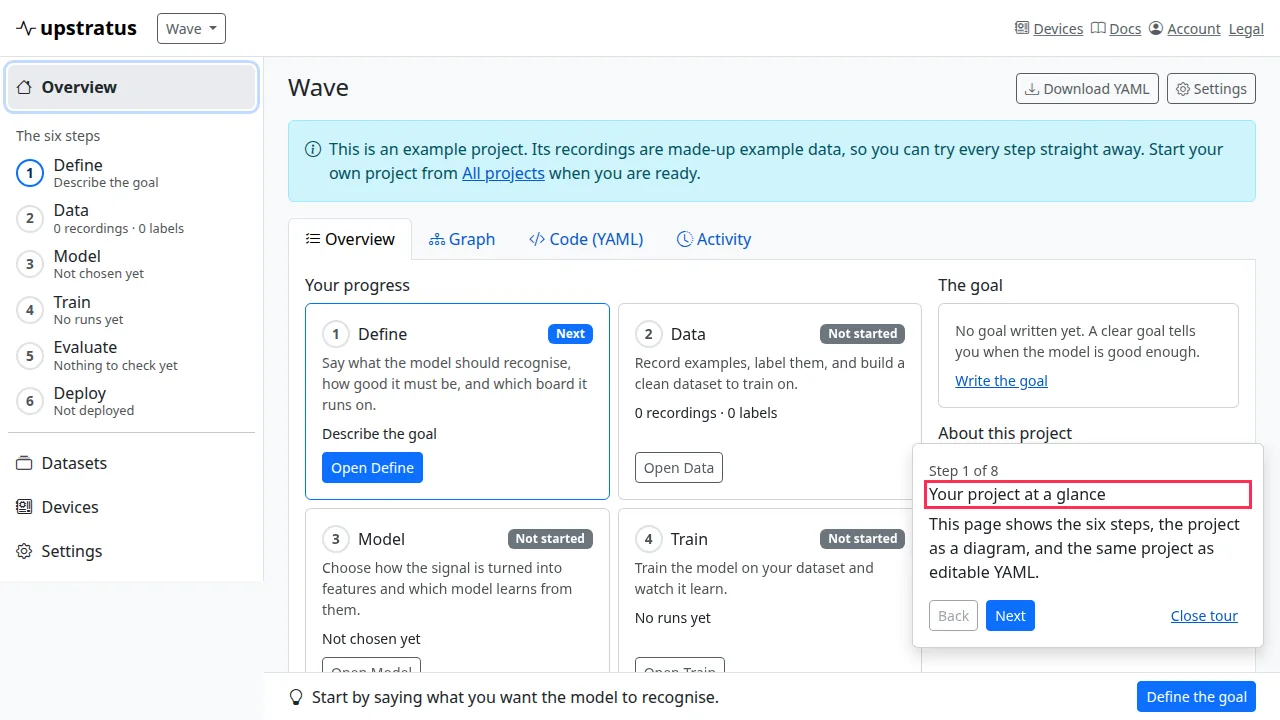
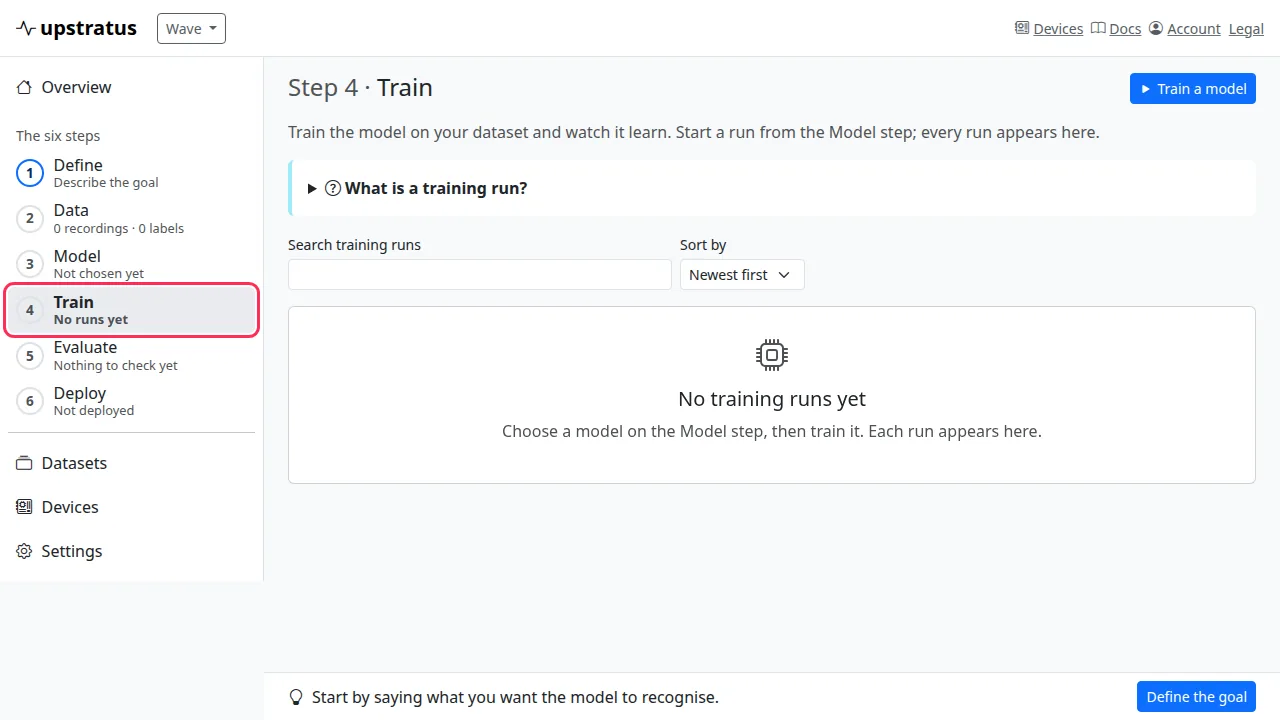
A project is one model from start to finish. Every project follows the same six steps, and the left side of every project screen lists them:
| Step | What you do there |
|---|---|
| 1. Define | Write what the model should recognise, how you will judge it, and which board it will run on. |
| 2. Data | Record examples with your phone or import them, label them, and build a clean dataset. |
| 3. Model | Choose how recordings are summarised (features) and which small model learns from them. |
| 4. Train | Teach the model. Each run is scored on recordings it never saw. |
| 5. Evaluate | Compare versions and check whether one fits your board and meets your goal. |
| 6. Deploy and monitor | Plan putting a version on a board and check its answers live. |
Each step shows its own state (Done, Next, or not started) and a one-line summary such as "12 recordings · 2 labels". You can open any step at any time: nothing is locked.
The next step
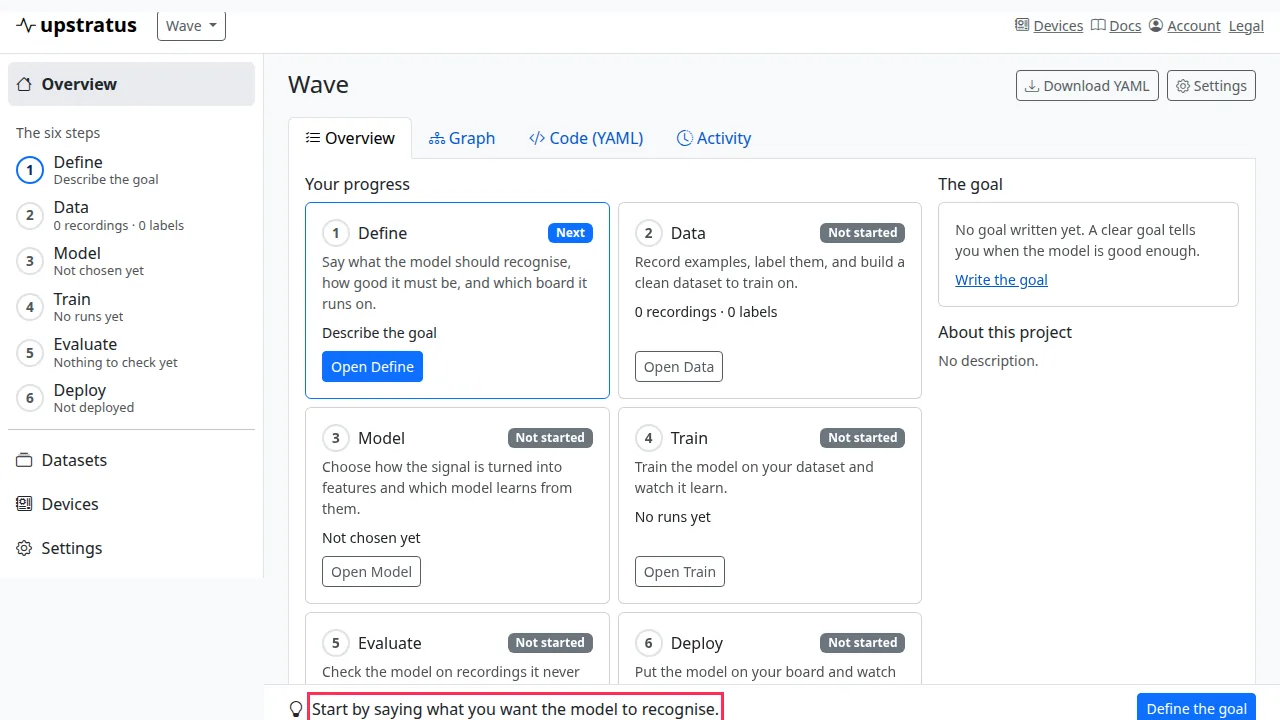
The bar at the bottom of every project screen suggests the most useful next step, and its button takes you there. On a phone, choose the menu button (☰, "Show project steps") at the top left to open the list of steps.
Switch projects
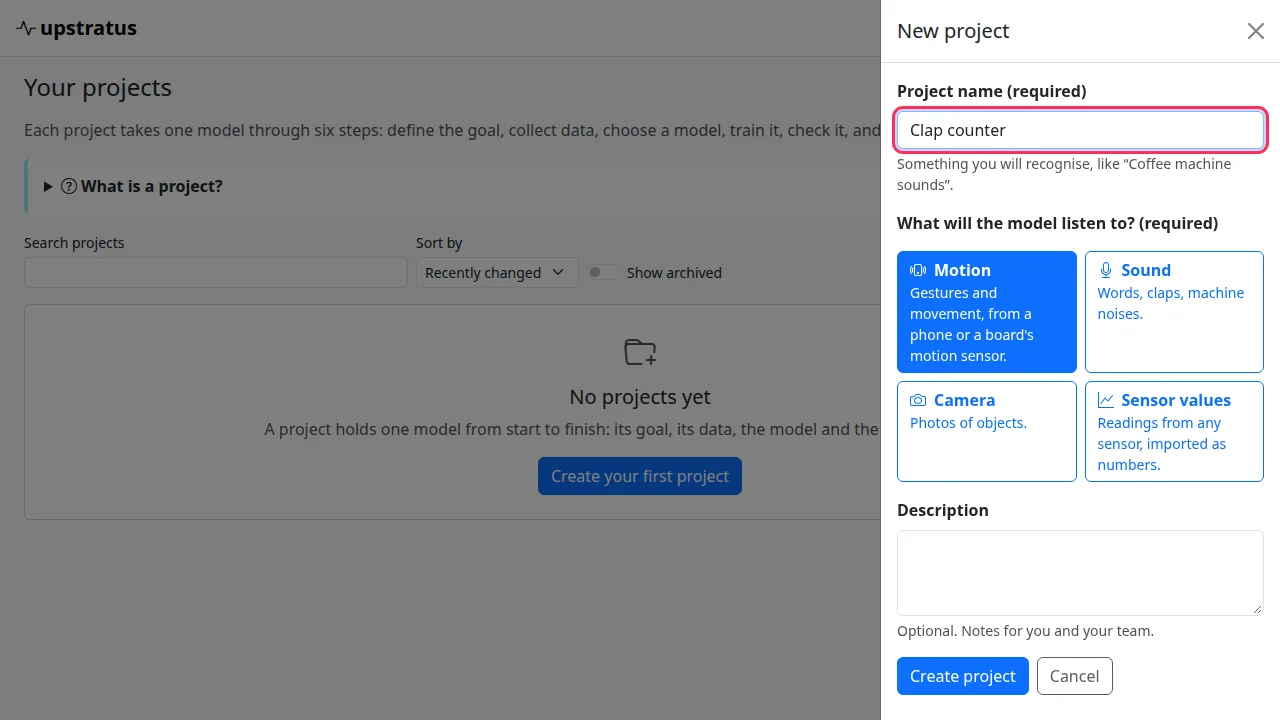
The project's name at the top is a menu. Choose another project to switch, All projects to see them all, or New project to start one.
All projects
All projects lists every project as a card. From a card's ⋯ menu you can:
- Duplicate it, with or without its recordings (up to 500 recordings are copied);
- Archive it to hide it without losing anything, with Undo for a few seconds afterwards;
- Download as YAML;
- Delete it for good, after a confirmation. This removes its recordings, datasets, runs, models and deployments.
Turn on Show archived to see archived projects and Restore one.
The tour and the glossary
A new account starts with an example project and offers a short tour. Show me around walks through the six steps one at a time (Back, Next, Close tour, or press Esc). No thanks hides the offer. Words with a dotted underline explain themselves: point at one, or move to it with the Tab key.